Your computer is running but the screen is completely black. Here is what is actually happening and exactly what to do about it step by step.

Has your computer decided it was a great time to stop displaying a picture while somehow still looking like it is running? You try everything. You go back and forth with an AI chatbot. You finally call someone for help and they show up, press one button, and it is fixed in seconds. What the heck?
Here is what actually happened.
The culprit: a stuck Windows update
If you are running Windows and rely on automatic updates your machine most likely got stuck mid-update. When this happens Windows prioritizes finishing the update over loading the display drivers, which is why your screen goes dark even though the computer is technically still running.
Something triggered it. A small power interruption. A pile of updates that never got installed all firing at once when you finally decided to restart. Whatever the cause, the result is the same. Black screen. Computer running. No picture.
Step 1: Force shut it down properly
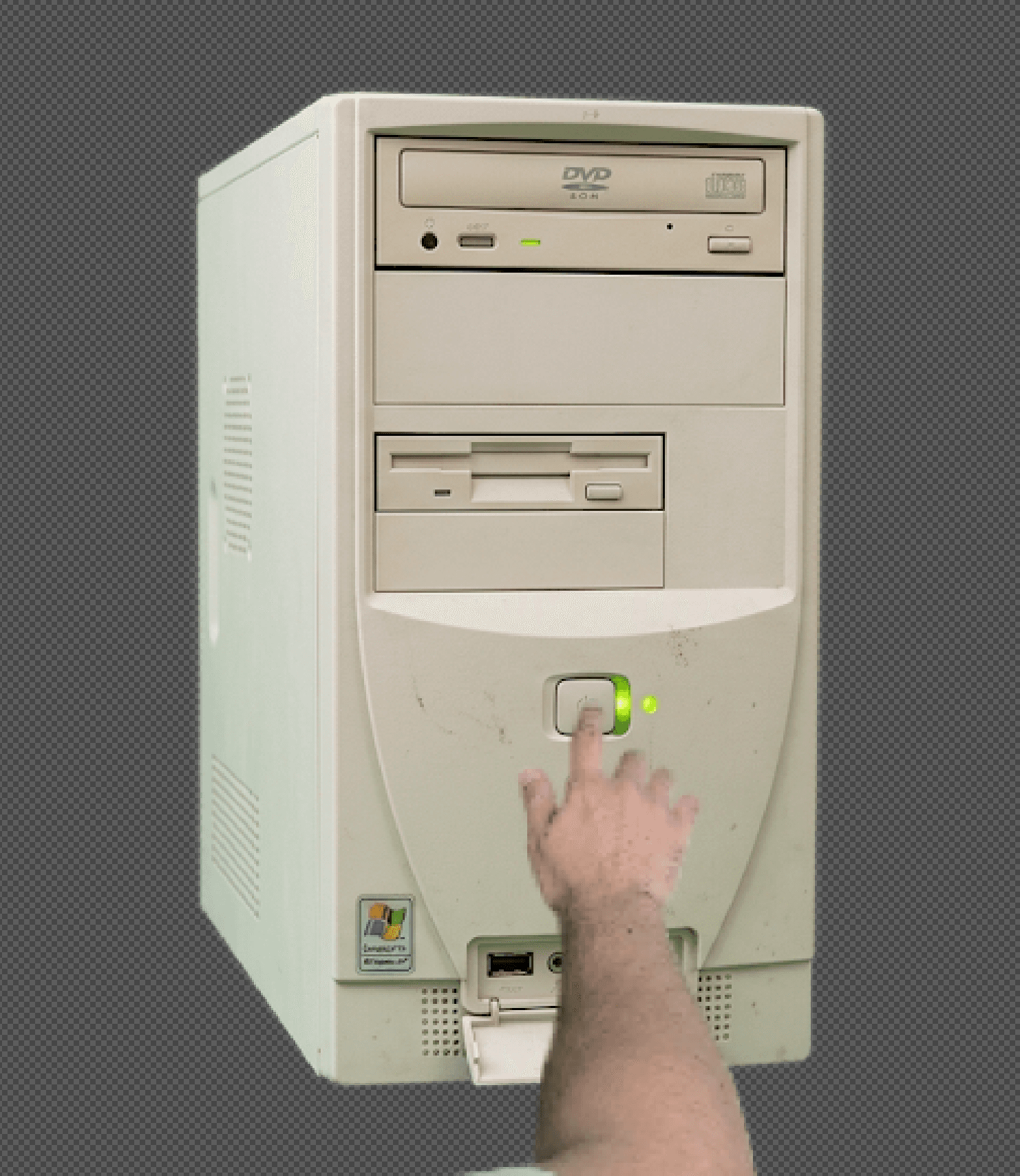
Most people press the power button quickly. That does trigger a shutdown but in this state your machine needs more convincing. Press and hold the power button for more than 15 seconds until every light on the device goes completely dark. That is the sign the system has fully shut down. A quick tap is not enough here.
Step 2: Turn it back on
Once it is fully off press the power button normally to start it back up. Two things can happen from here.
Scenario A: Back to your desktop
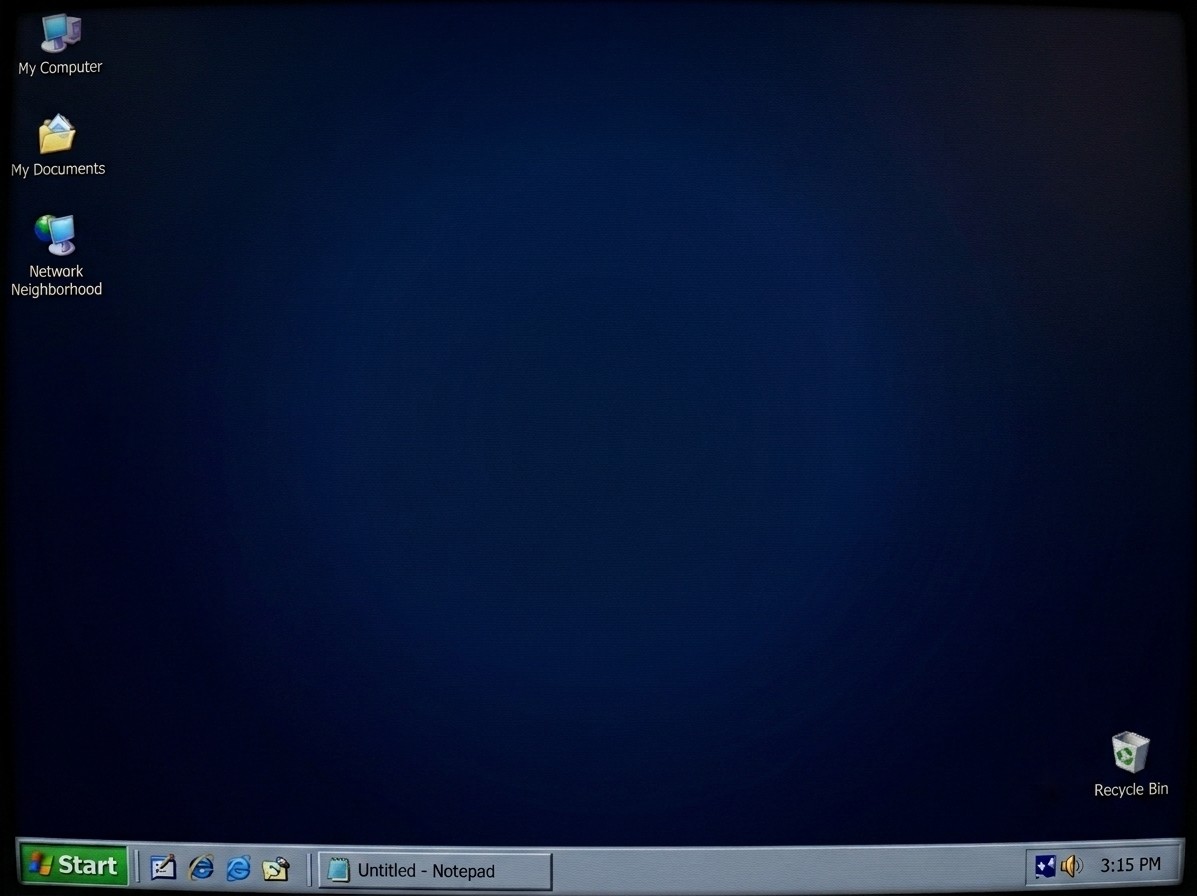
The machine boots back to the Windows update screen, finishes or pauses the problematic update, and lets you back to your desktop. Do not skip past this and move on. There is important cleanup to do first.
Open Command Prompt as Administrator by right clicking on it. Run these two commands one at a time and let each one finish before running the next:
These check for Windows corruption and repair it. The stuck update and the force shutdown can leave things in a broken state even if the screen is back. Running these makes sure everything underneath is clean.
After both commands finish go to Windows Settings, Windows Update, and check for any updates that did not apply correctly. Run them until there are none left. If you have been ignoring updates for a while this part can take some time. Be patient. It is worth doing properly so this does not happen again.
Scenario B: Blue recovery screen
The machine boots to a blue recovery screen instead of your desktop.
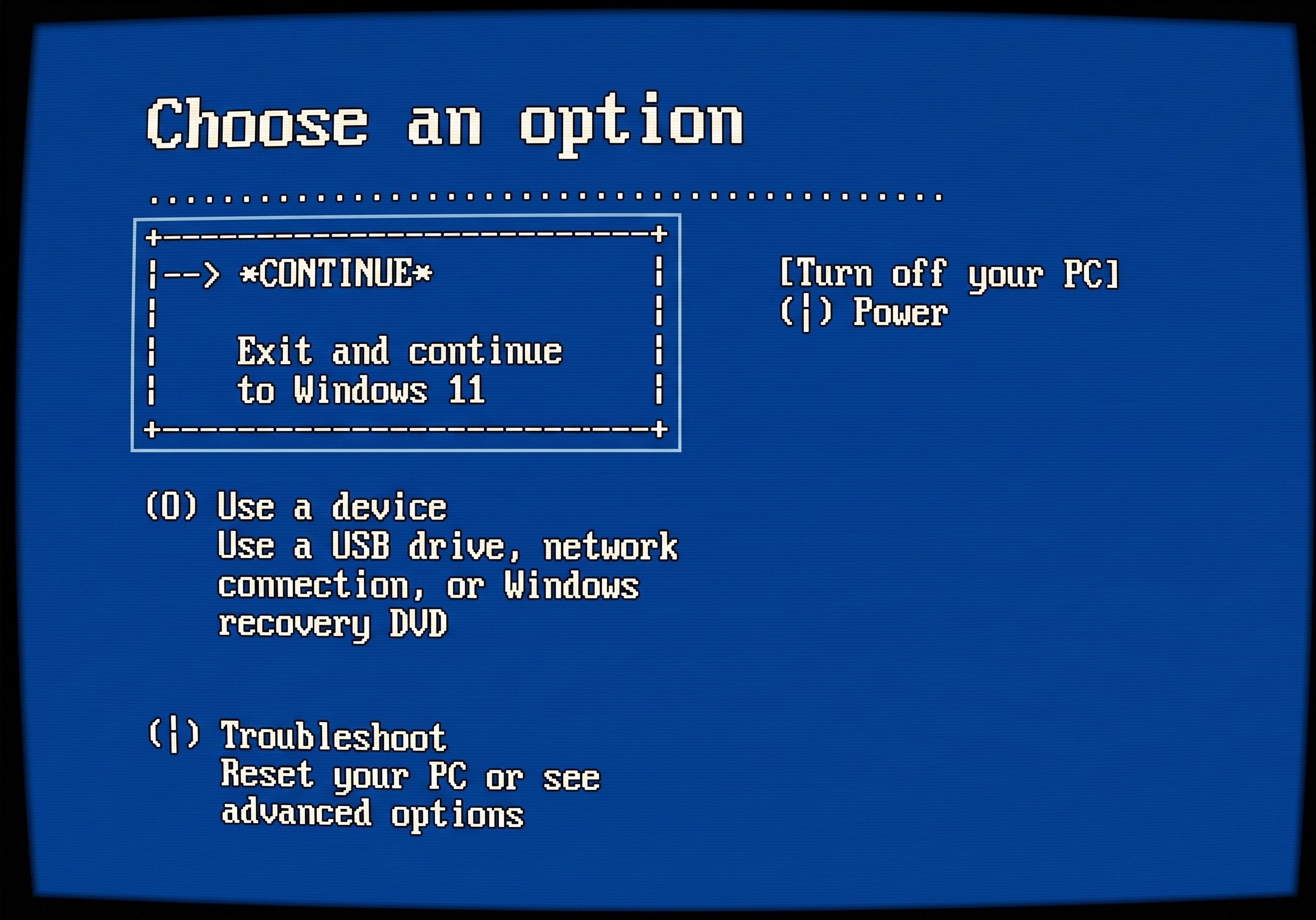
From here try the Continue to Windows option first. In most cases this brings you straight back to the desktop with no issues.
If you get a screen asking for a BitLocker recovery key, check out our BitLocker blog where we cover exactly how to handle that situation.
If the PC keeps booting to the same blue screen the system may have gotten corrupted during the failed update. Windows has built-in repair tools including Startup Repair, Roll Back Updates, and System Restore that can help. A dedicated blog post on each of these tools is coming soon.
The bottom line

Technology is moving faster than ever. Companies are pushing updates more frequently and your machine needs to keep up to stay stable and secure. A black screen during an update is almost never permanent but it is your computer telling you it has been neglected for a while.
If you got back to your desktop, great. Run through the updates and keep them current so this does not happen again. If you are stuck and none of the above is working, reach out. This is exactly the kind of thing we sort out fast.
Related Articles