Human Written
You finally upgraded to Windows 11 and instead of a clean fresh start you get what feels like signing up for a credit card. Here is what is actually happening during setup and what to do about it.
Let me set the scene. You finally upgraded to Windows 11, you open the laptop, and instead of a clean fresh start you get what feels like signing up for a credit card. Welcome to the Windows Out of Box Experience, or OOBE as Microsoft calls it, because of course they have an acronym for confusing you.
This has been going on since Windows 10. The difference now is how hard Microsoft pushes you toward an online account before you even see your desktop. Some of what happens during setup can cause real headaches later and Microsoft is not exactly rushing to warn you.
Here is what is actually going on and what to do about it.
The Wi-Fi Ask

Windows will ask you to connect to Wi-Fi early on. The reason they want you online is so they can block you from creating a simple offline account. No Wi-Fi, no Microsoft account requirement. They figured that out and closed the loophole. Classic MicroSlop.
The Microsoft Account Screen
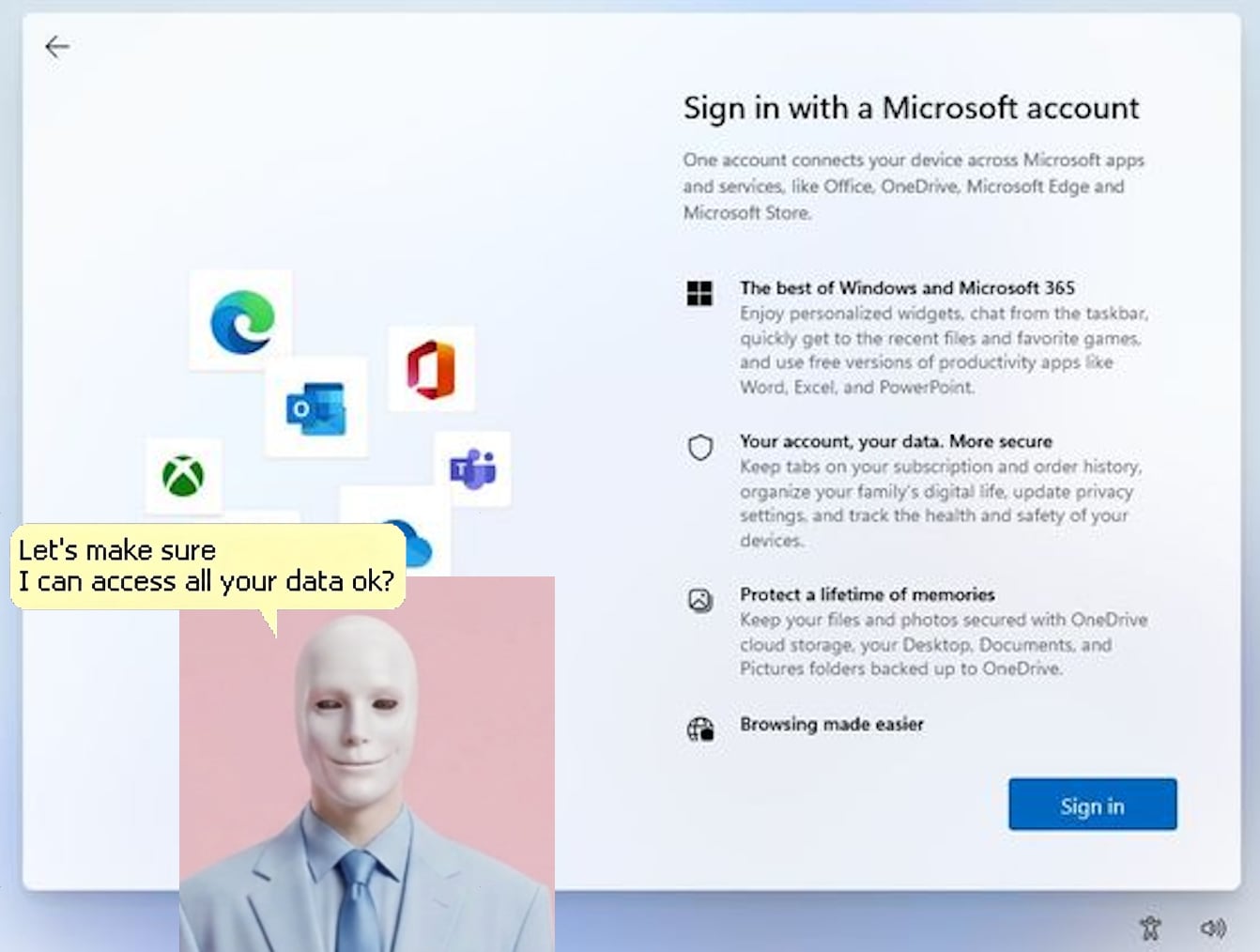
This is the big one. Microsoft will ask you to sign in or create an account. A lot of people already have one without knowing it because Microsoft tends to create accounts in the background without asking. If the email on screen looks familiar, try resetting the password. If you have no idea what it is, just create a new one. Use Create a new email and let Microsoft generate a fresh Outlook address. Keep it simple and move on.
Already have an account and use Office or OneDrive? Going online here actually makes sense since it activates everything at once. Just know that Microsoft has a way of linking your email to things you never asked it to regardless of what you choose. Online or offline, MicroSlop finds a way.
The Data Collection Screens

After the account you hit a series of screens asking you to turn things on. Here is the short version:
Location? Off, unless you want the weather widget to update automatically.
Everything else? Skip anything that asks to share data. Click through the rest and move on. Nobody asked for any of it.
Windows Recall — Stop Here

If you see something called Recall, pay attention. This is an AI feature that takes screenshots of everything you do on your computer. Banking, passwords, personal messages, all of it. Microsoft still pushes it to compatible devices without making it obvious.
You may not be able to turn it off during setup but you can right after. Go to Settings, Privacy and Security, Recall and Snapshots, and turn off Save Snapshots. While you are there hit Delete Snapshots to clear anything already stored.
The Encryption Key Nobody Tells You About
Here is the thing Microsoft does quietly while you are clicking through all those screens. Your entire hard drive just got encrypted with something called BitLocker or Device Encryption. A 48 digit recovery key was generated and tied to the Microsoft account you used during setup.
Why does this matter? If your computer ever hits a serious error and throws a blue screen, BitLocker might be asking for that key before letting you back in. No key, no access. Your data is gone. Microsoft cannot help you because there is no backdoor.
Go to Settings, Privacy and Security, Device Encryption, BitLocker Drive Encryption, Back Up Your Recovery Key.

Here is the thing. Microsoft does back up this key to your Microsoft account automatically, which sounds reassuring until you realize that 9 out of 10 times I deal with a locked out computer the person either does not remember which Microsoft account they used, thinks they remember but does not, or created a fresh Outlook email during setup that they never actually logged into again. The key is technically there, the account is just gone from their memory.
This is why you want a physical copy. Print it out, write it down, put it in a drawer, a filing cabinet, your junk drawer, anywhere you can physically get to it. As long as you have that 48 digit key you can unlock the drive no matter what happens. No account needed, no Microsoft involved, just the key and your computer. Without it, the drive is locked and there is no way in. Not even for us.
On Windows Home? If BitLocker is greyed out or Windows is asking you to upgrade, you do not have it. No worries, just skip this step and keep going.
Windows 11 Pro? You Have a Cleaner Option

If you are on Windows 11 Pro there is an officially supported way to skip the Microsoft account requirement entirely during setup without any command line tricks.
When the setup screen asks how you would like to set up your device, select Set up for work or school even though your computer is for personal use. On the next screen instead of signing in with a Microsoft account click Sign-in options and then select Domain join instead.
That is it. Windows will take you straight to a local account creation screen. No Microsoft account, no workarounds, no commands. Just a username and password and you are done.
This option is only available on Windows 11 Pro, Education, and Enterprise editions. If you are on Windows Home this option will not appear and the steps in the next section are your path instead.
Setting Up a Local Offline Account

You do not have to use your Microsoft account as your main login every day. If you want a simple offline account that does not phone home to Microsoft here is how to do it.
Go to Settings, Accounts, Other Users, Add User. Microsoft will try one more time to pull you toward a Microsoft account sign in. Click I Don’t Have This Person’s Sign-In Information, then Add a User Without a Microsoft Account. Create a username and password, set it as Administrator, and you are done.
Once your offline account is working go back and change the original Microsoft account from Administrator to Standard User so it is not running the show.
Feeling a little technical? You can also open Command Prompt as Administrator, right click to find that option, and use these two commands:
net user to see all accounts on the machine
net user YOURUSERNAME /active:no to disable the Microsoft account
The Bottom Line

Windows setup is designed to get you signed up, opted in, and tracked before you ever see your desktop. None of it is accidental. Now you know what each screen is actually asking and what you can safely skip or turn off.
If any of this went sideways on your device or you want someone to go through it properly, reach out. It usually takes about 20 minutes and you walk away knowing exactly what state your machine is in.
Related Articles