Human Written
A straightforward walkthrough for backing up Windows files before switching computers, covering both a working machine and one that will not turn on.
Quick answer: Plug in a USB or network drive, then copy your Users folder (Desktop, Documents, Downloads, and so on) from This PC to that drive. If OneDrive already has your files synced, you can usually just sign into the same Microsoft account on the new machine and skip the manual copy. If the old computer will not turn on at all, the files can still be pulled by removing the hard drive and connecting it to a working machine.
Getting a new PC, or worried your current one is going to die mid task and take your files with it? Here is the straightforward version, no drama required.
You will need one thing before you start: a reliable storage device, either a USB hard drive or a network backup drive. From there it comes down to which of two situations you are in.
Scenario 1: The Old Computer Still Works

If the machine boots, runs, and does not freeze up on you, you are in the easier scenario. A machine that constantly hangs can crash mid transfer and corrupt the files you are trying to save, so if yours is already unstable, treat every step here carefully and consider backing up in smaller batches.
To do a manual copy, open File Explorer and go to This PC, then your C: drive. Inside you will find a folder called Users. Open it and check every account listed. Some accounts are just empty local profiles with nothing worth saving, so it is worth a quick look before you copy anything.
Inside the account you actually want, you will see the familiar folders: Desktop, Documents, Downloads, and so on. You can copy the whole set at once, or go folder by folder if you want to leave anything behind.
Once everything is copied to your backup drive, setting up the new machine is the same process in reverse. Open File Explorer, go to This PC, C:, Users, find the new account’s folder, and drop your backed up folders back into their matching spots.
Wait, I Don’t See My Files
If your Documents or Desktop folder looks emptier than you expected, OneDrive is probably already syncing those folders to the cloud instead of storing them locally. Click into OneDrive and check if it shows the same folder structure. If it does, and you are on a Microsoft 365 plan, you likely have plenty of storage already covering you. In that case, the easiest move is signing into the same Microsoft account on the new computer. No manual backup needed.
Scenario 2: The Old Computer Won’t Turn On
This is the harder case: the machine is dead, and you still need what is on it.

There is a way to boot a dead machine into a temporary environment when the real problem is just a dying hard drive, and I will cover that in a future post. For now, assume you need to physically pull the drive.
Before opening anything, look up your machine’s service manual using its serial number on the manufacturer’s website. If you would rather not hunt for it yourself, an AI tool can help. Something like: “I have a [PC brand and model]. I need help finding the service manual. Please check online and give me the website if you cannot retrieve the manual directly.” Once you have the manual, you can hand it to your AI assistant of choice and have it walk you through the rest.
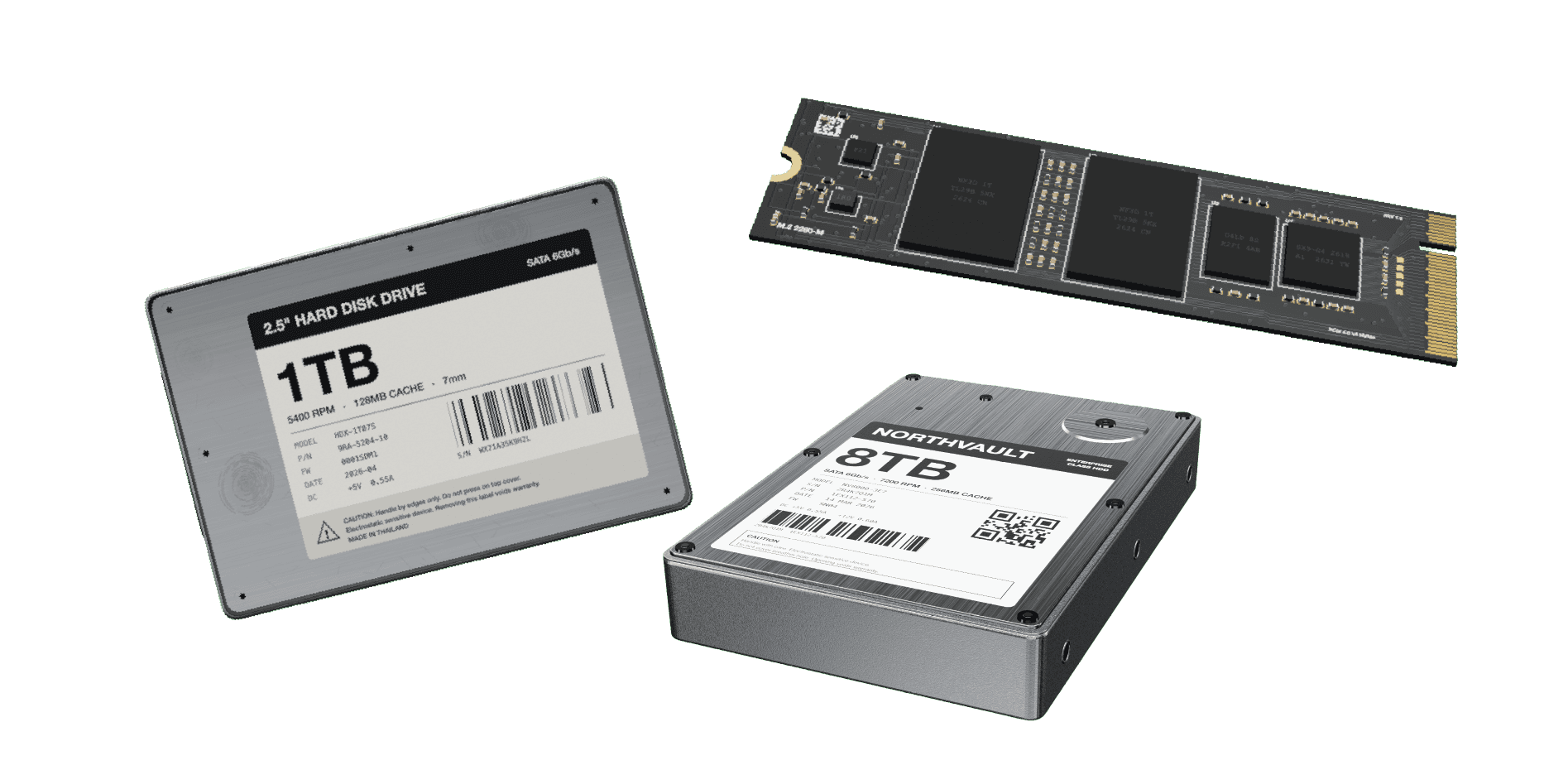
The manual tells you what type of drive the machine uses, which determines the adapter, or dongle, you will need to connect that drive to another working computer. You can ask your AI tool something like: “Refer to this service manual and tell me what type of hard drive this machine uses, and recommend a compatible adapter to connect it to another computer.” It can also usually walk you through exactly where the drive connects to the motherboard, picture by picture.
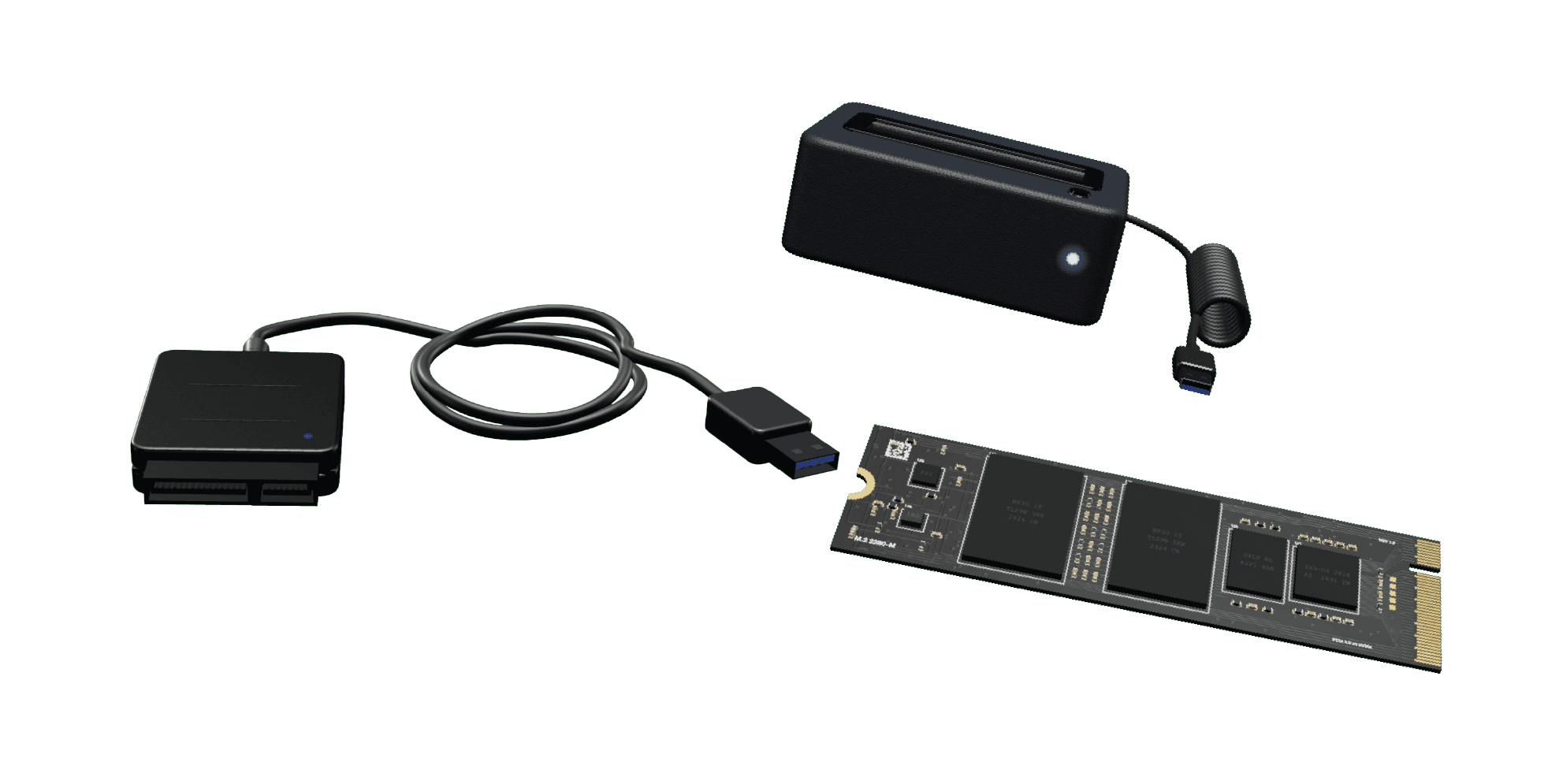
A few things to watch for while you are in there:
Some machines make you fight a little to get the drive out. Patience helps more than force.
Mechanical drives do not like sudden movement. Dropping or yanking one can cause it to fail on the spot.
Static electricity is a real risk to the drive. Use an anti static mat, or at minimum touch something metal to discharge yourself first.
Once the drive is out and connected to a working machine through your adapter, it will show up as a new drive under This PC. You may see a few partitions listed. Your files will be in the Users folder on one of them, just like in Scenario 1.
If you get a BitLocker prompt asking for a recovery key, we have a whole blog post on tracking that down, so give that a look if you land here.
Once your files are safely copied over, you have options for the old drive: reinstall it if you want to keep it as a spare, store it in an anti static bag if you just want it as a backup, or destroy it if you are disposing of it for good.
Either way, whether you are trying to squeeze more life out of a dying machine or just upgraded to something new, this should get your files where they need to be without losing anything along the way.

FAQ
Do I need to back up anything if OneDrive is already on?
If OneDrive is syncing your Desktop, Documents, and Downloads folders and you have enough storage on your Microsoft 365 plan, signing into the same account on the new computer is usually enough. Worth double checking the sync status before you skip the manual copy entirely.
What if I don’t know what kind of hard drive my old computer has?
Look up the service manual using your machine’s serial number on the manufacturer’s site, or have an AI tool find it for you. The manual will tell you the drive type and what adapter you need.
Is it safe to open my laptop myself to pull the drive?
For most laptops, yes, with some patience and the right adapter. Mechanical drives are more fragile than SSDs, so handle them gently and use anti static precautions.
What do I do if I get a BitLocker recovery key prompt?
We have a separate blog post on exactly that, worth a look if you end up there.
Related Articles


