Human Written
Printers and copiers are the undisputed champions of Murphy’s Law. Here is what to actually do when yours stops cooperating.

Does Your Printer Suck?
You are not alone. Printers and copiers are the undisputed champions of Murphy’s Law. The moment you need to print something important, they decide to have a meltdown. Why are they so unreliable? Honestly it is a rabbit hole involving networking, wireless modules, firmware, and a handful of other things that would put you to sleep. So let’s skip the theory and get straight to what actually works.
Step 1: Restart your computer
Before anything else, restart the computer. Not sleep, not close the lid, not walk away and hope for the best. A full restart. On Windows, hit the Start menu, click the power icon in the lower right corner, and select Restart. On a Mac, click the Apple logo in the top left and hit Restart. Once it is back up, try printing again. You would be surprised how often this is the only fix needed and how often we skip it out of stubbornness.
Step 2: Check if your printer is still on the Wi-Fi
If restarting did not help, your printer may have changed its IP address. This happens more than it should and it breaks the connection between your computer and the printer even though both are technically online. To check on Windows, go to Settings, then Bluetooth and Devices, then Printers and Scanners, and click Add Device. If your printer shows up, that is your culprit. Remove the old offline version first to avoid duplicates, then add it fresh. That usually gets things working again.
Pro tip: you can reserve your printer’s IP address in your router settings so this never happens again. We walk through exactly that in our Wi-Fi setup and network troubleshooting guide.
Step 3: Reconnect the printer to your network
If the printer does not show up at all when you try to add it, it has completely dropped off your Wi-Fi. Most printers have a network or wireless settings menu where you can forget the current connection and start fresh. Once you do that, follow the on-screen instructions or open the manufacturer’s software utility on your computer and select Add New Printer to walk through the setup again.
Not sure how to do this on your specific model? Use this AI chatbot prompt:
“I have a [Maker] [Model] printer. Check online for the service or user manual and give me straightforward instructions on how to forget the Wi-Fi connection and reconnect it to my network.”
Step 4: Use the manufacturer’s phone app
A lot of modern printers have a dedicated app that handles setup directly from your phone. Search your printer brand in the App Store or Google Play. The app connects to the printer and walks you through the Wi-Fi setup without needing a laptop at all. Chances are your printer already supports this and it is usually a much smoother experience than doing it through Windows.
Step 5: Factory reset
When nothing else works, a factory reset clears whatever is causing the problem and gives you a clean slate. On most printers this is buried in the maintenance or settings menu on the screen. If your printer does not have a screen, use this AI prompt:
“I have a [Maker] [Model] printer. Check the manual online and give me the button combination to do a hard factory reset.”
Some models also have a Wi-Fi-only reset using a specific button combination which is worth trying before going nuclear with a full factory reset.
You can also use AI to find the manufacturer’s software download page with this prompt:
“I have a [Maker] [Model] printer. Find the official manufacturer website and give me the direct link to download the printer software.”
Step 6: The USB cable trick
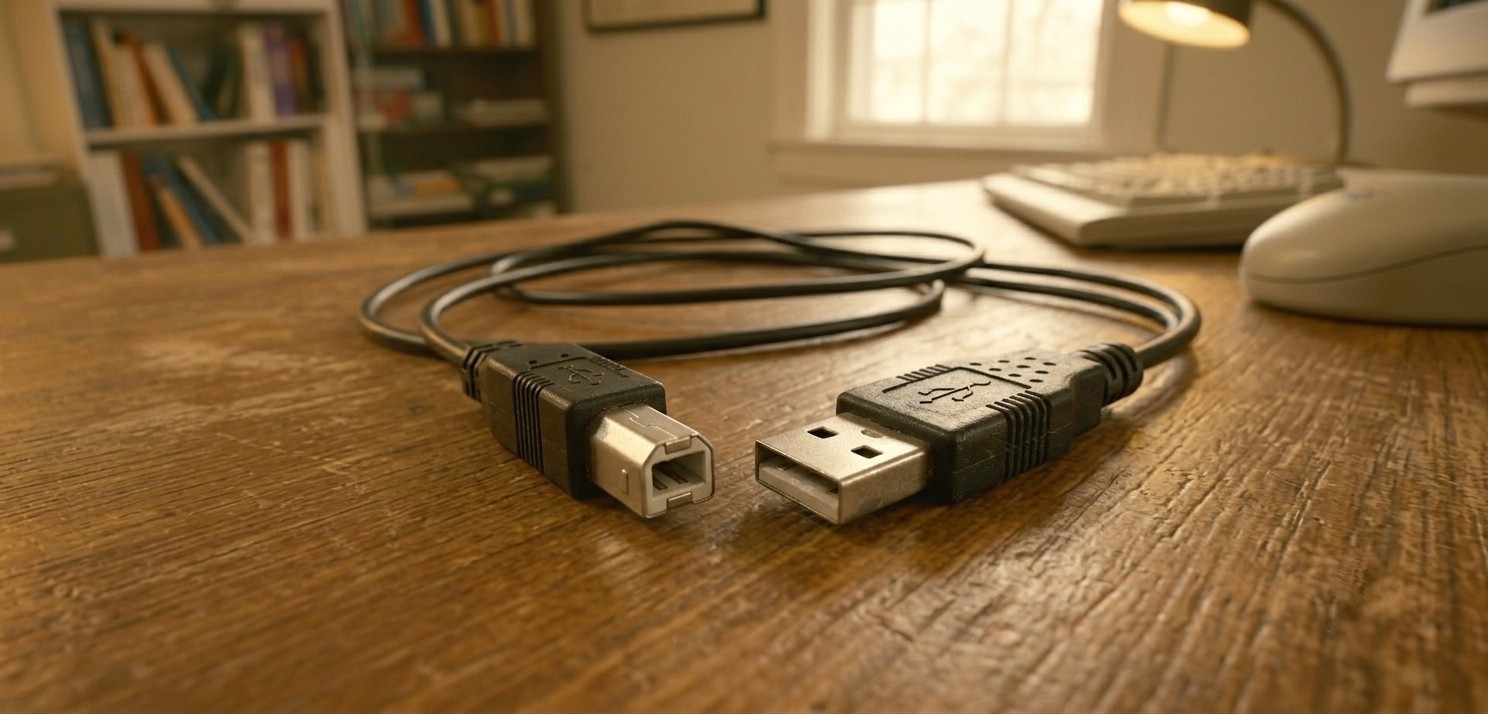
This is the move I always keep in my bag and it has saved me more times than I can count. A USB Type-B cable, the one with the boxy square end that plugs into the back of the printer, lets you connect directly from your computer while wired. From there you can use the manufacturer’s software utility to complete the wireless setup without Wi-Fi interference getting in the way.
A lot of printers hide this port under a sticker on the back or side. Lift the sticker and you will find it. If you have a desktop computer that stays home all the time, honestly just leave it plugged in. Printers behave significantly better over USB and you will never have to deal with this again.
These cables are cheap and if you have a drawer full of old tech cables there is a good chance you already have one. Search USB Type-B printer cable on Google to see what it looks like or to grab one for a few dollars.
Still stuck?
If you have gone through all of this and your printer is still giving you grief, our remote IT support for home users can take a look without you having to unplug a thing, or you can go ahead and book a service call and we’ll take it from there. We have seen it all and we are happy to take it off your hands. Sometimes the fix takes five minutes when you know where to look.
Related Articles