Human Written
A plain-language walkthrough of backing up a Mac with Time Machine before switching to a new one, including how to confirm it's actually working.

The fastest way to back up a Mac before switching to a new one is to plug in an external drive, let Time Machine run a full backup, and confirm it actually finished before you unplug anything. If you’d rather skip the cable, a network Time Machine drive works too, as long as it’s already set up before moving day. Either way, don’t start the migration until you’ve verified the backup is really there.
This one’s part of a two-part guide. Mac users get to go first this time, mostly because the built-in backup tool on macOS has become so mainstream that what most of you actually need is just confirmation you’re doing it right. The Windows version is coming next.
One of the things I’ve personally loved about macOS is how streamlined a migration can be. After a long time working in tech, moving to a new system with the fewest possible post-migration headaches is basically a dream, and Apple has been consistently good at keeping that experience solid across their whole lineup.
A Quick History of Time Machine
You’ve probably seen it before. It’s called Time Machine, and it’s been around for a while. Back when it was new, Apple offered their own network drive for it called the Time Capsule, though wired drives supported the same backups too, so people just needed the drive set up, flipped the switch on their Mac, and backups happened automatically from there. As USB storage got cheaper and more portable, external drives became the go-to method instead. But let’s be honest: nobody actually remembers to plug in their drive every time. And when cloud services promise to “back up your entire computer,” you usually find out the hard way that only the files you don’t even need anymore made it through. Murphy’s Law, as always.
So after all that, the real question is: what do you actually need to do to make sure your backups are happening?
What Time Machine Actually Does

Time Machine creates one full backup of everything on your device, and every backup after that is just a small snapshot of what’s changed. Unless your drive has a lot of storage, you may need to clean out old backups periodically so it doesn’t fill up, and how often depends on how heavily you use the machine and how much you’re storing. Here’s the one thing I’ll tell you straight: if you’re not sure your files are actually being backed up, go check. Don’t assume.
Setting It Up
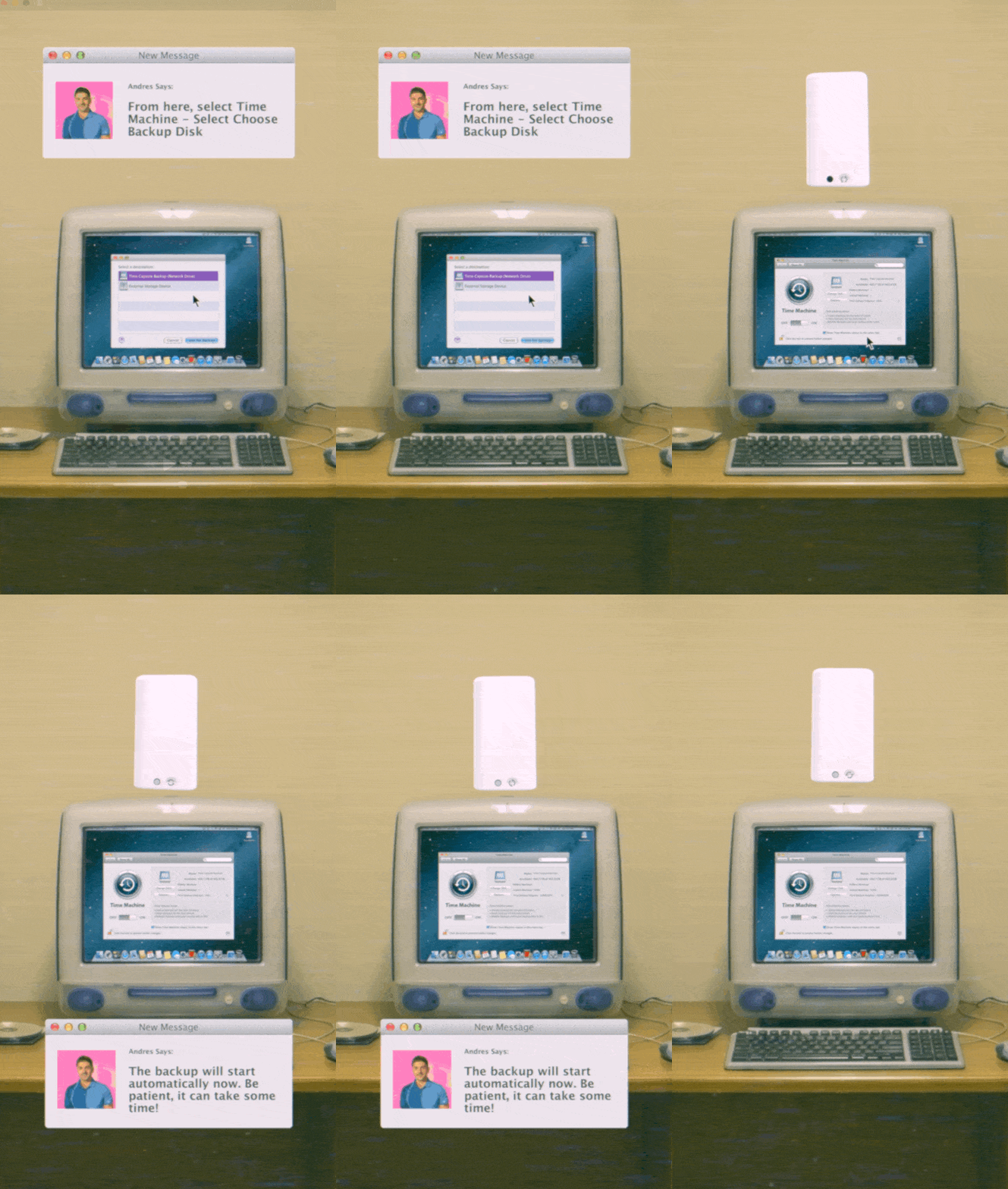
Most versions of macOS make this simple. Plug an external drive into the machine, and Time Machine will often recognize it and offer to use it for backups automatically.

If it’s a new or empty drive, you’re clear to go. If you’ve used that drive for something else before, make sure there’s nothing on it you still need. Time Machine has to format the drive before it can start backing up to it, so anything already there gets wiped. You can still use the drive for other storage later, but that initial setup is what determines what’s on it right now.
If it doesn’t prompt automatically, you can get there yourself: Apple menu (top left) → System Settings → General → Time Machine. From there, select your drive and start the first backup. Don’t unplug it until it confirms the backup is done. That first one can take hours, sometimes days, depending on how much is on your Mac. After that, it’s just a matter of setting a reminder to plug the drive back in periodically to keep your backups current.
Network Drives (No Cable Required)
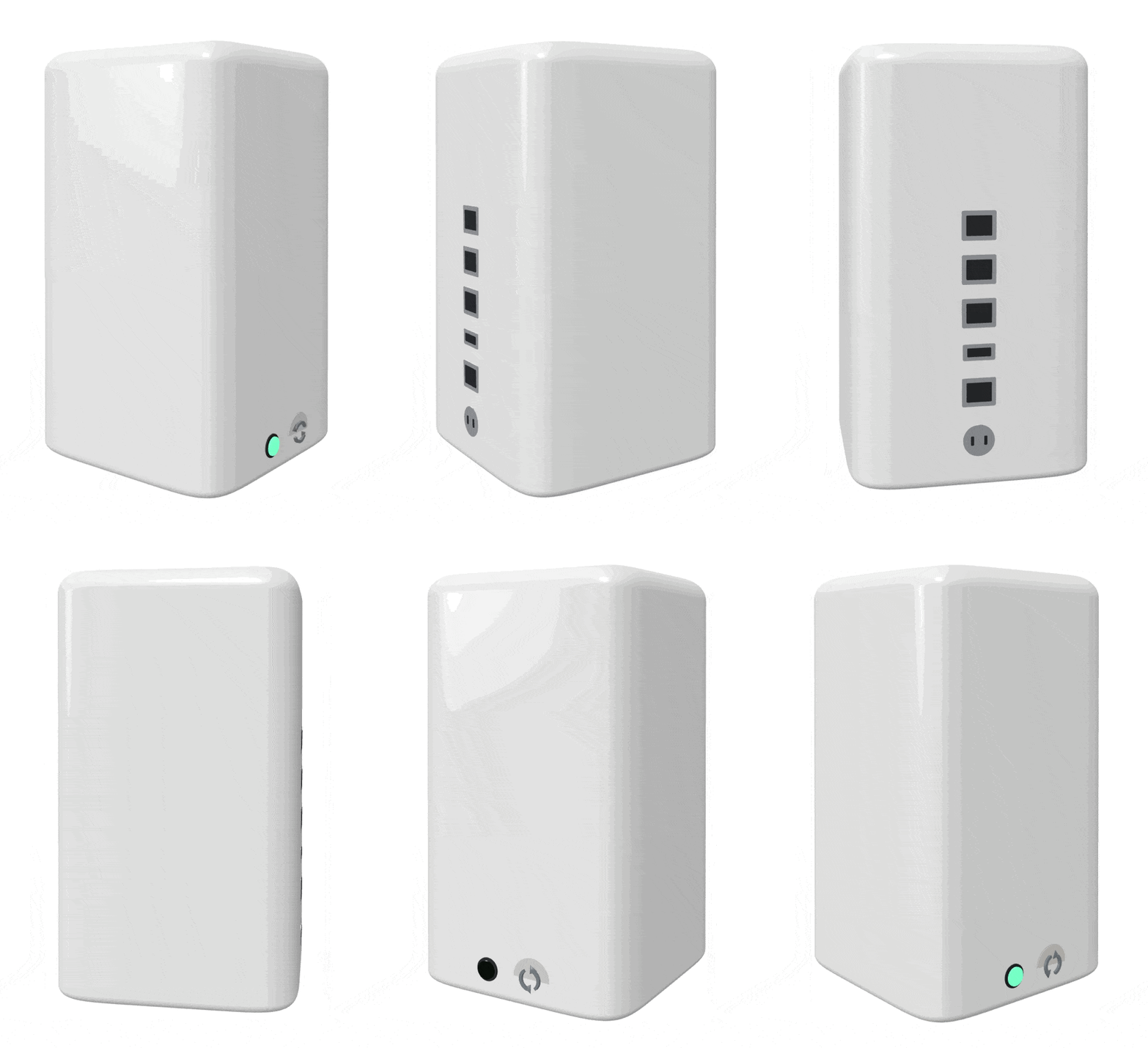
If you’d rather skip plugging in a drive every time, network-attached backup drives exist for exactly that. One thing worth knowing: Apple has been phasing out some of the older network protocols, so make sure whatever drive you’re looking at will keep working with future versions of macOS.
You’ll find these on most major online marketplaces. If you want a quick way to narrow it down, you can even ask an AI assistant something like: “I have a Mac and want to buy a network Time Machine drive. What are the best options that are easy to set up?” Most of these are plug and play over ethernet. Wi-Fi setup usually involves an app on your phone, which is generally just as easy. Once it’s online, it shows up in Time Machine the same way a wired drive would.
FAQ

Do I need to back up before switching to a new Mac?
Yes. Mac migrations are usually smooth, but a backup is your safety net if anything gets missed or corrupted along the way. It only takes a few minutes to set up and it’s worth doing every time.
Can I use Time Machine with any external drive?
Mostly, yes. Any USB or Thunderbolt drive with enough free space will work, but Time Machine formats the drive before it starts, so anything already on it gets wiped first. Network drives work too, as long as they support the protocols current macOS versions still use.
How long does a first Time Machine backup take?
It depends on how much is on your Mac, but plan for anywhere from a few hours to a full day or two for the very first backup. Every backup after that is much faster since it’s only saving what’s changed.
If You’d Rather Not Deal With It
If you’re local to Southwest Florida and would rather just hand this off, we set up and confirm backups for people all the time, whether that’s getting Time Machine running correctly for the first time or making sure an existing setup is actually working the way you think it is. Book a call and we’ll take care of it.
Next up: the Windows version of this guide, for anyone making the same move on a PC.
Related Articles


